A pattern I see in scoping conversations: a product team has a Unity prototype that works beautifully on a developer's laptop. They want to ship it to the web. They build it. They open the result on a phone. Page weight: 80 megabytes. Time to first interaction: forty-five seconds. The project quietly dies.
This is one of the most common reasons companies bring in an independent WebGL developer for hire — not to build something new, but to rescue a project that already works in the editor and won't survive on the open web. The Unity WebGL build size problem has a few real causes and a few real fixes. None of them are mysterious. But teams without a senior 3D web developer in the room often address the symptoms instead of the root cause and end up shipping something that's 60 megabytes instead of 80 — still unshippable.
Here's how I think about Unity WebGL bundle size when a team brings me in to triage it.
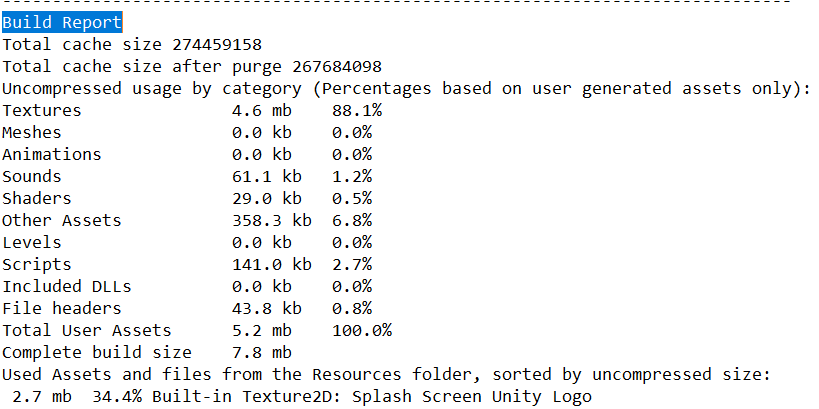
What's actually in your 80MB build
The first thing I do isn't optimize. It's measure. A Unity WebGL build that ships at 80MB has a specific shape, and the right intervention depends on which slice is dominating.
A typical un-optimized Unity WebGL build breaks down roughly like this:
- The Unity engine runtime itself — somewhere between 15 and 25 megabytes baseline, before your project adds anything. This is the cost of bringing a full game engine into the browser, and it's largely fixed.
- Mono runtime and IL2CPP-generated code — your scripts, plus the .NET runtime they depend on, transpiled and bundled. This grows with project complexity but is usually 5–15 MB.
- Asset bundle — textures, meshes, audio, animations. This is where most projects bloat. A team with an undisciplined asset pipeline can easily land at 30–50 MB just in art assets.
- Shader compilation — Unity ships shader variants for every material/feature combination it might encounter. Without explicit pruning, this can swell into double-digit megabytes.
- Audio — uncompressed WAV files in a dev project that nobody remembered to convert before building.
Knowing which slice is dominating tells you whether to prune assets, switch frameworks, or accept the floor and work around it.
Fixes that work, in order of leverage
When I'm hired to shrink a Unity WebGL build, I work through these in order. The earlier interventions are reversible. The later ones imply bigger architectural decisions.
1. Compress textures with KTX2 / Basis Universal
The single highest-leverage change for most projects. Unity supports Basis Universal compression for WebGL builds, which can cut texture bundle size by 60–80% with negligible quality loss for most use cases. Many teams have never enabled it.
A texture pass alone often turns an 80 MB build into a 40 MB build. This is where the Unity WebGL optimization conversation should always start.
2. Strip unused engine modules
Unity's WebGL build includes engine subsystems your project may not use — physics, animation, terrain, particle systems, video. Stripping the unused ones via the build pipeline can save 5–10 MB.
This is usually a half-day of careful work for a senior Unity WebGL developer who knows where each subsystem hides. For a team unfamiliar with the build pipeline internals, it can take a full week and miss things.
3. Aggressive code stripping with IL2CPP
Unity offers code stripping at three levels: low, medium, high. Most teams ship with low because higher levels can break reflection-heavy code paths. For a production WebGL build that's been audited for reflection use, high-level stripping can reduce code size by 20–30%.
The audit is the part that needs experience. Strip too aggressively without checking and you ship a build that crashes the first time a UI panel tries to instantiate a prefab via reflection.
4. Audio compression
Audio is the lowest-hanging fruit nobody picks. Vorbis at quality 5 is acceptable for most game and educational audio and can be 90% smaller than the dev WAV files. For a build with significant voice acting or music, this alone can save 10+ MB.
5. Asset bundles loaded on demand
Instead of shipping all assets in the initial build, split them into asset bundles loaded as the user progresses through the experience. Initial page load drops dramatically — the user gets to interact in seconds, then assets stream in as needed.
This is one of the bigger architectural changes on the list. It pays off enormously for educational game development, training simulator development, or any experience with discrete levels or chapters. It's harder to apply to a single-scene product configurator.
6. Brotli compression on the server
Configure your CDN or hosting platform to serve .br (Brotli-compressed) versions of the WebGL files. Unity emits both gzip and Brotli outputs by default — the trick is making sure the server actually delivers the smaller one. A correctly configured Brotli setup can cut transferred bytes by 20–25% with no code changes at all.
This one is free if you remember to do it. Most teams don't.
When Unity is the wrong tool
Sometimes the right Unity WebGL optimization is to not use Unity. I say this as someone who is comfortable in Unity and has shipped Unity-based projects to the browser. The framework has a place, but the place is narrower than most teams assume.
The 15–25 MB engine baseline is structural. Even with every optimization above, a Unity WebGL build will not realistically land below ~10 MB of engine plus your content on top. For projects where that's a non-starter, the right intervention isn't optimization — it's a framework swap.
I'd recommend leaving Unity for the browser version of a project when:
- The project is fundamentally a 3D website, product configurator, or marketing page, and the engine features (physics, animation system, particle systems) aren't load-bearing.
- Mobile is the dominant traffic source. The 25 MB floor is fatal on slow connections. Most marketing and product pages can't tolerate it.
- The team doesn't have a Unity developer in-house long-term. Maintaining a Unity WebGL build requires Unity-specific knowledge. Three.js or Babylon.js code can be picked up by any senior front-end developer.
- The interactive layer is light. A scene with a few products, some camera controls, and a configurator UI doesn't need a game engine. It needs a 3D library.
When I'm consulted on this kind of decision, the conversation usually ends with one of three outcomes: keep Unity and apply the optimizations above; rebuild in Three.js for a fraction of the bundle size; or split — keep Unity for the editor-side authoring tools and ship a custom Three.js viewer for the public web.
When Unity is the right tool
To be fair to the framework: there are projects where Unity is genuinely the best choice for browser-based 3D development.
- Training simulator development where complex physics, AI, and scenario logic are the product itself. Rebuilding that in Three.js means rebuilding a game engine.
- Educational game developer projects with a long content roadmap, where Unity's editor productivity for non-engineers (designers, technical artists) outweighs the bundle cost.
- Internal-tool delivery to known users on broadband — the bundle size matters less when the audience is a hundred employees with good internet, not a hundred thousand visitors on phones.
- Cross-platform projects where the web build is one target alongside iOS, Android, and standalone. Unity's cross-platform reach justifies the web cost.
For these, the right play is to embrace the engine, optimize aggressively using the techniques above, and treat the bundle size as a known constraint rather than a problem to solve.
The senior call most teams don't make
The decision about Unity WebGL bundle size is usually a decision about whether Unity belongs on the web at all. The optimization techniques are real and worth applying. But if the project is a product configurator on a public-facing marketing page, the right Three.js development services engagement will deliver the same experience at one-tenth the bundle size, and that's the harder call most teams need help making.
This is where an embedded WebGL developer for hire earns the engagement. The optimization checklist above is something a competent in-house team can work through with documentation and patience. The harder question — is this project actually a Unity project, or is it a Three.js project that someone built in Unity because Unity was the tool they had? — is the question that benefits from an outside perspective.
If you have a Unity WebGL build that's not shipping because the size keeps it from loading on mobile, that's the conversation worth having before you spend another month on optimization. Sometimes the answer is "yes, this is a Unity project, here's how to ship it." Sometimes the answer is "this should be Three.js, and the rebuild will pay for itself in three weeks."
The right answer depends on the project. The first 30 minutes of a discovery call is usually enough to know which one.